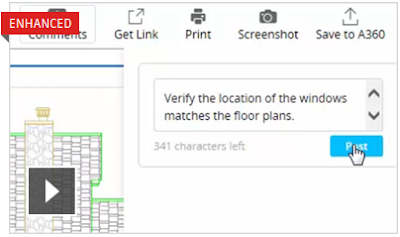
Publishes design views of your drawing to a secure location for viewing and sharing in a web browser
Enjoy the best possible viewing experience ever, even on 4K and higher resolution displays.
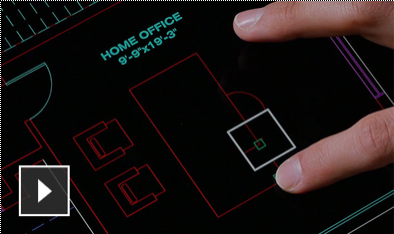
View, create, edit and share CAD drawings on your mobile device.
2D objects
Lines, polylines, circles, arcs, elliptical arcs, splines, text and blocks.
Hatch objects
Annotation objects
Dimension and multileader objects
3D Solids
3D faces, 3D edges and 3D vertices
Rendering is the process of creating a raster image based on the 3D objects in a scene
A rendered image can be created for a new model without attaching materials, placing user-defined lights, and adding a bacground.
By default, a default material is added to all 3D objects in the model and the renderer automatically uses two default distant lights when user-defined lights are not placed in a scene.
You can specify to use a single default distant light that shines from over-the-shoulder
Default lights cannot be moved or adjusted
A point cloud is a large collection of points acquired by 3D laser scanners or other technologies to create 3D representations of existing structures
Point clouds are derived from raw data scanned from physical object like building exteriors and interiors, process plants, topographies and manufactured item.
Autodesk ReCap
Autodesk ReCap coverts raw scan data to scan files *.rcs and project file *.rcp that reference multiple RCS files.
Both these formats can be attached to an AutoCAD drawing
Modify point cloud density and point size
You can manage program performance and visual noise by increasing or decreasing the number of visible points and points size
Apply color stylization
You can retain the original scan color or stylize the point cloud based on object color, normals (point orientation), intensity, elevation or LAS classification data.
Cropping Point Cloud
You can crop rectangular, polygonal or circular areas to show only relevant portions of the point cloud.
Print Studio helps to address by providing powerful, 3D print-preparation capabilities.
1. Prep bar
Click through the workflow steps to prepare your model for 3D printing
2. Printers
Select a printer
3. Setting
- Select a material, preset print profile.
- Create a customized profile
- Adjust advanced printer settings
4. Vertical toolbar
Access tools for each workflow step
5. ViewCube
Manipulate the view of the model consistently
6. Build volumn
The white visual-guide box indicates the available printable space for the selected printer
7. Build surface
Represents the location to which models adhere to when printing
8. Scene
The entire workspace within Print Studio, including the build platform and the area around it, the build content and the selected print profile - saved as *.3ps file.
9. Object browser
Hide and show the printer's build surface in the scene
It lists all models in the scene, making it easier to work with each individually, as well as provides quick access to change the display units for length.